Release 8.0.4 for Windows NT and Windows 95
A55922-01

Library |

Product |

Contents |

Index |
| Oracle8
Client Getting Started
Release 8.0.4 for Windows NT and Windows 95 A55922-01 |
|


Oracle8 Client for Windows NT includes various tools to perform
database functions. This chapter describes the preferred tools to perform
common database administration tasks.
Specific topics discussed are:
Database tools is a collective term for tools, utilities,
and assistants that you can use to perform database administration tasks.
Some database tools perform similar tasks, though no one database tool
performs all database administration tasks. The following sections indicate
which database tools can be used on particular operating systems and the
preferred tools to use for common database administration tasks.
This table lists database tools and the operating system(s) on which each can be used:
| Database Tools | Oracle8 Client for Windows NT | Oracle8 Client for Windows 95 |
|---|---|---|
|
Oracle8 Utilities |
|
|
|
Server Manager (SVRMGR30)1 |
Yes |
Yes |
|
Export (EXP80) |
Yes |
Yes |
|
Import (IMP80) |
Yes |
Yes |
|
SQL*Loader (SQLLDR80) |
Yes |
Yes |
|
Recovery Manager (RMAN80) |
Yes |
Yes |
|
Password Utility (ORAPWD80)2 |
No |
No |
|
TKPROF (TKPROF80) |
Yes |
Yes |
|
Windows NT Tools |
|
|
|
User Manager |
Yes |
No |
|
Control Panel |
Yes |
No |
|
Event Viewer |
Yes |
No |
|
Performance Monitor |
Yes |
No |
|
Oracle Enterprise Manager |
|
|
|
Instance Manager |
Yes |
Yes |
|
Data Manager |
Yes |
Yes |
|
Storage Manager |
Yes |
Yes |
|
Schema Manager |
Yes |
Yes |
|
Security Manager |
Yes |
Yes |
|
Backup Manager |
Yes |
Yes |
|
SQL Worksheet |
Yes |
Yes |
|
Oracle Assistants (wizards) |
|
|
|
Oracle Patch Assistant |
Yes |
Yes |
|
Oracle Net8 Assistant |
Yes |
Yes |
|
Oracle Net8 Easy Config |
Yes |
Yes |
|
Oracle INTYPE File Assistant |
Yes |
Yes |
|
SQL*Plus |
Yes |
Yes |
| 1 The
ORADEBUG utility can be used through Server Manager.
2 ORAPWD80 does not work on password files for remote databases. |
This section describes how to start each of the database tools in the following categories:
You will be referred back to this section for database tool
startup procedures as you use this manual.
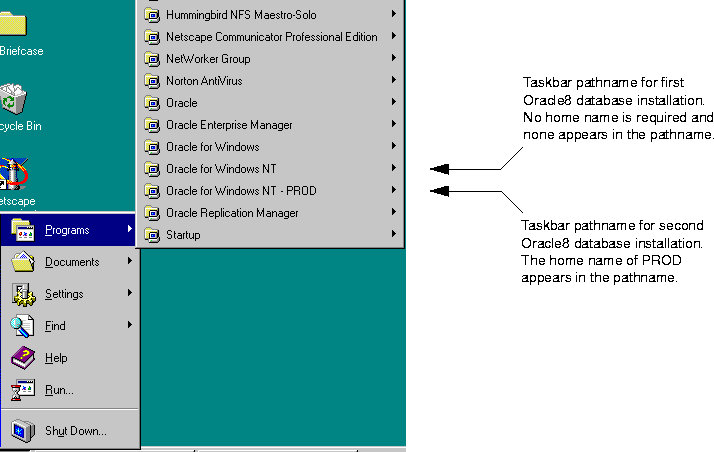
If you are using multiple Oracle homes functionality, the
command to start a tool includes [HOME_NAME] where [HOME_NAME]
indicates the name of a different Oracle home. For example:
Start > Programs > Oracle for Windows NT - [HOME_NAME]
> Oracle Database Assistant
If you want to start Oracle Database Assistant from an Oracle
home called PROD, choose Start > Programs > Oracle for Windows NT - PROD
> Oracle Database Assistant.
This table describes how to start each Oracle8 Utility, and where to go for further information on using these products:
| Oracle8 Utilities | To Start... | For More Information, See... |
|---|---|---|
|
Export Utility (EXP80) |
Enter the following at the MS-DOS command prompt followed by your user name and password: C:\> EXP80 EXP80 starts and prompts you for parameters. To obtain a list of these parameters, enter the following at the MS-DOS command prompt: C:\> EXP80 HELP=Y Note: When running the Export utility, the default values for the following parameters under Windows NT are: Note: To export an entire database, you must use the user name SYSTEM. Do not use INTERNAL or SYS. |
|
|
Import Utility (IMP80) |
Enter the following at the MS-DOS command prompt followed by your user name and password: C:\> IMP80 IMP80 starts and prompts you for parameters. To obtain a list of these parameters, enter the following at the MS-DOS command prompt: C:\> IMP80 HELP=Y Note: When running the Import utility, the default values for the following parameters under Windows NT are: RECORDLENGTH 2 KB |
|
|
SQL*Loader (SQLLDR80) |
Invoke SQL*Loader at the MS-DOS command prompt followed by certain keywords. Enter the following and SQL*Loader displays a Help screen with the available keywords and default values: C:\> SQLLDR80 |
|
|
TKPROF (TKPROF80) |
Enter the following at the MS-DOS command prompt: C:\> TKPROF80 |
Oracle8 Tuning |
This table describes how to start each Windows NT tool, and where to go for more information on using these products:
| Windows NT Tools | To Start... | For More Information, See... |
|---|---|---|
|
Control Panel |
Choose Start > Settings > Control Panel |
|
|
Event Viewer |
Choose Start > Programs > Administrative Tools > Event Viewer |
|
|
Performance Monitor |
Choose Start > Programs > Oracle for Windows NT - [HOME_NAME] > Performance Monitor |
|
|
Registry |
Enter the following at the MS-DOS command prompt: C:\> REGEDT32 The registry editor window appears. |
|
|
User Manager |
Choose Start > Programs > Administrative Tools > User Manager |
|
You can start Oracle Enterprise Manager tools:
To start an Oracle Enterprise Manager tool separately:
For example Start > Programs > Oracle Enterprise Manager
> Instance Manager.
The Login Information dialog box appears.
| Additional
Information:
See "Oracle Enterprise Manager"
in Chapter 6, "Post-Installation Configuration
Tasks" for information on configuration tasks you must perform before
using Oracle Enterprise Manager and information on how to connect to an
Oracle8 database.
|
To start an Oracle Enterprise Manager tool from the Console:
The Login Information dialog box appears.
This table describes how to start each Oracle Enterprise Manager tool through the Console, and where to go for further information on using these tools.
This table describes how to start each assistant, and where to go for further information on using these products:
| Assistant | Choose Start > Programs > Oracle for Windows NT - [HOME_NAME] > | For More Information, See... |
|
Oracle Net8 Easy Config |
Oracle Net8 Easy Config |
|
|
Oracle Patch Assistant |
Oracle Patch Assistant |
The integrated online Help with this assistant |
This table describes how to start SQL*Plus, and where to go for further information on using this product:
| SQL*Plus | To Start... | For More Information, See... |
|
|
Enter the following at the MS-DOS command prompt: C:\> SQLPLUS Choose Start > Programs > Oracle for Windows NT - [HOME_NAME] > SQL*Plus 8.0 Starts the GUI version of SQL*Plus |
|
This section describes Windows NT specific information for
using SQL*Loader (SQLLDR80).
These are the possible values for the Operating System Dependent (OSD) file processing specifications string option, referred to in the "SQL*Loader Control File Reference" chapter of Oracle8 Utilities.
| Processing Option | Description |
|---|---|
|
""1 |
Stream record format in which each record is terminated by a newline character. The maximum record size is 48 KB. |
|
"FIX n" |
Fixed record format in which each record is exactly n bytes long. If the record is terminated by a newline character, the newline character must be the nth byte. |
|
"VAR xxxx" |
Load variable length records. Specify the OSD "VAR recsizehint" in the control file for this option to take effect. The xxxx gives an estimate of the average record size to SQL*Loader so that it can approximate buffer sizes accurately and not waste memory. The default length is eighty characters. The xxxx does not specify how many leading bytes of length are included in each record. It only acts as a hint to SQL*Loader. Each record must always be preceded by five ASCII bytes containing the length of the remainder of the record. For example, a record must look like the following: 00024This is a 24 byte string Any whitespace, carriage returns, or linefeeds at the end of the record are ignored unless specifically included in the byte count in the length field. |
| 1 Two double quote characters with no space in between. |
SQL*Loader includes a direct path option that bypasses Oracle8
Client redo log and data verification features, thereby decreasing loading
time. Use the direct path option with data files known to be error free.
When preparing a SQL*Loader control file (.CTL), you must follow certain syntax and notational conventions. When specifying datatypes in the SQL*Loader control file, note that the default size of native datatypes are specific to Windows NT. You cannot override these defaults in the control file.
| Native Datatypes | Default Field Length |
|---|---|
|
DOUBLE |
8 |
|
FLOAT |
4 |
|
INTEGER |
4 |
|
SMALLINT |
2 |
| Additional
Information:
For a complete list of options and instructions on using
SQL*Loader, see Oracle8 Utilities. The directory
ORACLE_HOME\RDBMS80\LOADER contains a number of examples on the
use of SQL*Loader.
|
The following Windows NT tools can be used to administer an Oracle8 database:
The Control Panel enables you to modify system options such
as computer services. A service is an executable process registered in
the registry and administered by Windows NT. The registry automatically
tracks and records security information for each service you create.
When you install the Oracle8 database and other products,
Oracle services are created and displayed in the Services dialog
box: 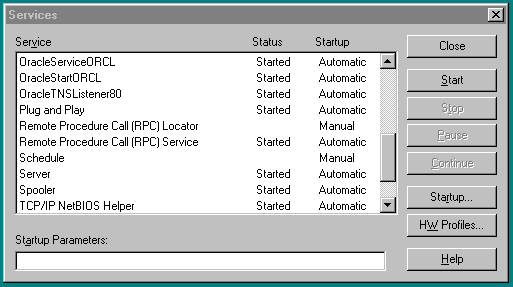
Use the Services dialog box to start, stop, pause,
or continue each of the Oracle services available on the computer, and
to pass startup parameters to the service.
Oracle services are the same as Windows NT services. In order
to connect to and use an Oracle instance, an Oracle service is created
during the database creation process and associated with the Oracle8 database
Once a service is created with your Oracle8 database, the
service can run even while no user is logged on. This is because your Oracle8
database starts each instance as a service. This feature enables you to
maintain workstation security while running your Oracle8 database.
You can now have multiple, active Oracle home directories on a single computer. This affects the naming conventions for Oracle services. See Chapter 5, "Using Multiple Oracle Homes" for additional information.
| Additional
Information:
See "Step 1: Start Oracle Services
on Managed Oracle8 Database" in Chapter 6,
"Post-Installation Configuration Tasks", for specific instructions
on using the Control Panel to start the Oracle Intelligent Agent service.
|
Event Viewer enables you to monitor events in your system.
An event is an important occurrence in the system or application (such
as your Oracle8 database) that requires user notification. While messages
for major events can display on-screen as you work at your computer, events
not requiring your immediate attention are recorded by Windows NT in the
Event Viewer log file. You can then view this information at your convenience.
The Event Viewer can be used to monitor Oracle8 database events, such as:
In addition, the operating system audit trail is logged to
the Event Viewer. The figure below shows the Event Viewer displaying Oracle8
database events. Double-click an entry to find out specific information
about an event. 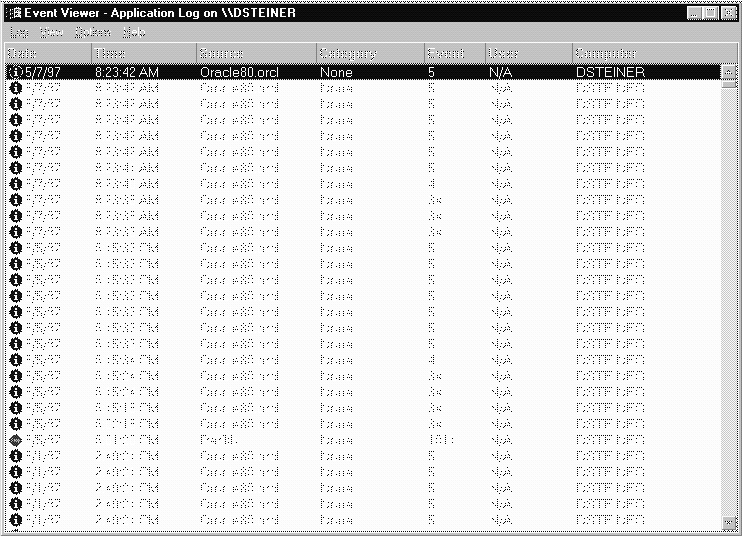
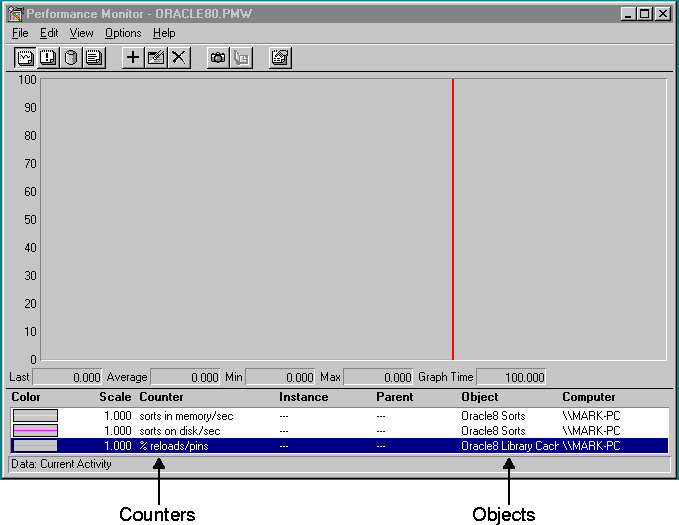
Performance Monitor measures computer performance. This tool
enables you to view the performance of processors, memory, cache, threads,
and processes. Performance information provided includes device usage,
queue lengths, delays, throughput measurements, and internal congestion
measurements. This information is provided in the form of charts, alerts,
and reports.
If you install the Oracle8 Performance Utility from your CD-ROM, you can use the Performance Monitor to monitor key Oracle8 database information, such as:
You can use your findings to improve database performance.
The figure below shows the Performance Monitor monitoring Oracle8 database
objects listed at the bottom of the screen:
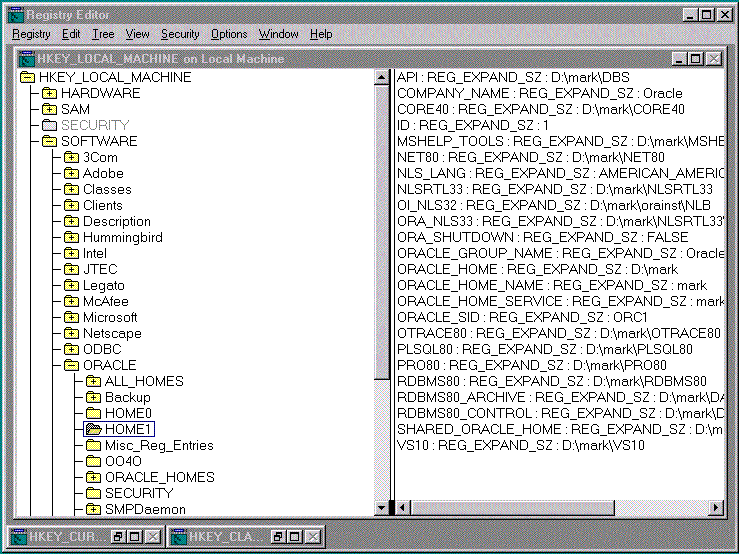
The Oracle8 database stores its configuration information
in a structure known as the registry. You can view and modify this configuration
information through the registry editor. The registry contains configuration
information for your computer, and must not be accessible for editing by
inexperienced users. Only experienced administrators should view and change
this information.
The registry editor displays configuration information in
a tree-like format consisting of four keys (or folders). These keys are
shown in the tree view in the left-hand window. In the right-hand window,
the parameters and values assigned to that key are displayed.
When you install products from your CD-ROM, configuration parameters are automatically entered in the registry. These parameters are read each time your Windows NT computer is restarted. These parameters include settings for:
The figure below shows some of the Oracle8 database configuration parameters in the registry:
| Additional
Information:
See Appendix B, "Configuration
Parameters and the Registry" for definitions of Oracle8 database configuration
parameters and specific instructions on using the registry to modify Oracle8
database configuration parameters.
|
User Manager enables you to manage Windows NT computer security
and create user accounts.
With User Manager, you can:
The figure below shows the User Manager: