Last Updated on Thursday, June 07, 2001 at 14:26:50. by Author: Nigel George
Data Validation, Expert Information/Help
Contents
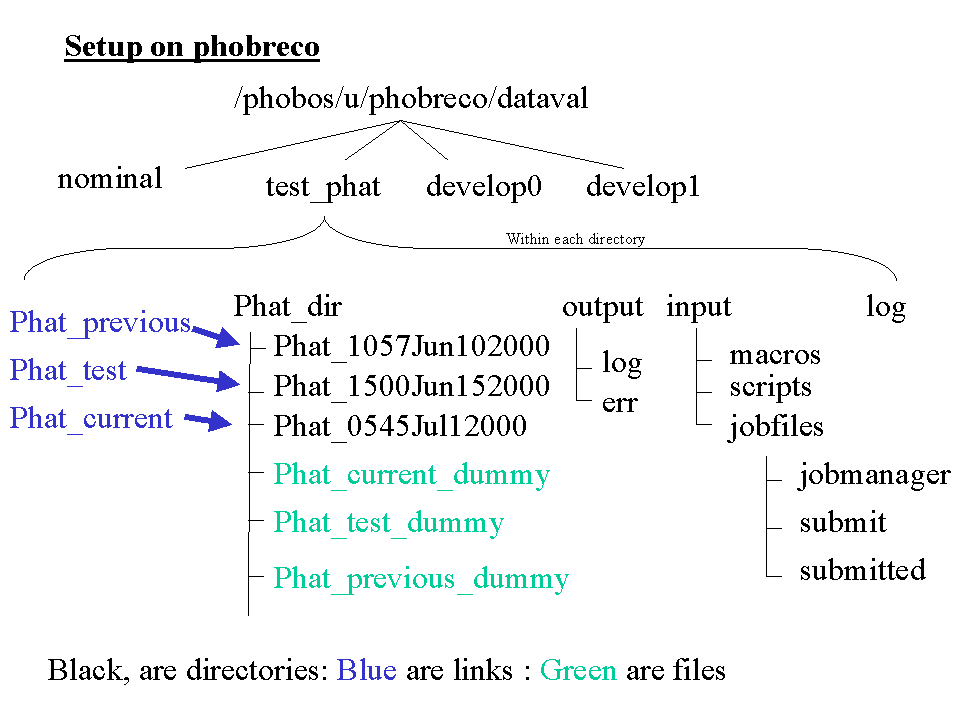
Data validation is contained within the directory dataval. Underneath this directory
lie 4 subdirectories:
- nominal : This is where the current running version of data validation is kept
- test_phat: This is where versions of phat (tagged or head) are downloaded and tested to
see that they work
- develop0,develop1: Are where datavalidation development work can proceed,
independently of the the other two directories that are responsible for maintaining data
validation
The directory structure in each of the above directories, is the same and shown above.
It consists of 4 directories, and three links
- Phat_dir: This directory contains the Phat directories. They are
labelled in the following way:
Phat_HHMM{Month}DDYYYY
- output, and input : are as the suggested directory
structure to be employed by users of crs. It is largely redundent as data validation must
use standard code from cvs, hence most things are run through Phat_current/test, and
Phat_dir.
- log: Is the directory where the log file from downloading and testing a
new phat is sent.
- Phat_test: This is a link to the phat directory that is being tested
- Phat_current: This is a link to the phat directory that is currently running
- Phat_previous: This is a link to the phat directory that was the previous
running phat
There is a script test_dv.sh, which will download a tagged
version of phat,compile it and if successful submit a job to CRS. Once the job is finished
(determined by user) it will start the online, which allows you to view the output object
manager (PhoOM######s###.root). If the output looks as expected, then you have
successfully tested data validation, and now could update the nominal version of data
validation.
- logon as phobreco@rcrsuser
- At prompt phobreco@rcrsuser:~>,
type
cd /phobos/u/phobreco/dataval
- At prompt phobreco@rcrsuser:dataval>,
type
./test_dv.sh [TAG_NAME] [ENTER]
For example: ./test_dv.sh ONLV_1_0_1 [ENTER]
Note: If don't specify tag, HEAD will be used by default
- Enter the directory name from where you are running.i.e. type
test_phat [ENTER]
- Enter the run and sequence number of the file you want to use as a test file.
- When asked whether should write output to file or HPSS, enter d (for disk)
- Enter if you want a complete checkout (which removes existing Phat), or just an update.
- Enter if you want to do a make clean, and/or make depend
- If phat successfully compiled, the job is then submitted to CRS farm. To monitor
this a CRS_status window will appear, look for the DV job you have submitted, and when it
is finished hit [ENTER]
- Hitting enter will start up the online, so you can examine the
PhoOM<RunNumber>s<SeqNumber>.root file. Check that all the plots are
reasonable
- When finished, exit the online program.
- An additional check should be made, checking the
error files for Errors and Warnings.
- If all looks good after these checks you have now fully tested the data validation
process.
- Remove all the files in the $DV_OUT/test area
What to do if problems occur
- If phat does not compile, examine the
/phobos/u/phobreco/dataval/test_phat/phat_compile.log file, and report the bug to phbugs@MIT.EDU. Retry when bug fixed.
- If the CRS job has problems submitting jobs ensure HPSS/RCF is up and running correctly.
- If a CRS job crashes, examine the DateYYYYMMDD_TimeHHMMSS_Set1.err/log
files in $DV_OUT/test area
to see where and how if occured. Send mail to the appropriate person (i.e. one responsible
for that code)
- If the online crashes, inform judith
- If the output of the data validation looks incorrect inform the person resonsible for
that module.
- For the phat you want to tag,
cd $PHATHOME [ENTER]
- Find last version of tag (as of Aug 3 00, ONLV_1_0_15)
- Type
cvs tag ONLV_[X]_[Y]_[Z] [ENTER]
eg. cvs tag ONLV_1_0_15 [ENTER]
// Yes in future, following does not work
//////////////////////////////////////////////////////////////////////////////////////////////////////////////////////
- For the phat you want to tag,
cd $PHATHOME [ENTER]
- Type
$PHATHOME/macros/dataval/dv_scripts/tag_phat.sh [ENTER]
- This will ask you for the password to cvs, where it will search for all the
ONLV_[X]_[Y]_[Z] type tags. Chose one number greater than the largest one, for the new tag
name.
- You should see the files getting tagged, once finished you will have successfully tagged
this version of phat
///////////////////////////////////////////////////////////////////////////////////////////////////////////////////////////////////////////////////////////////////////////
- As phobreco on rcrsuser at prompt, phobreco@rcrsuser:~>
,type
cd /phobos/u/phobreco/dataval
- At prompt phobreco@rcrsuser:dataval>,
type
./test_dv.sh [TAG_NAME] [ENTER]
For example: ./test_dv.sh ONLV_1_0_1 [ENTER]
Note: You must specify a tag name here otherwise you will not be permitted to proceed.
- Enter the directory name from where you are running.i.e. type
nominal [ENTER]
- Enter the run and sequence number of the file you want to use as a test file.
- When asked whether should write output to file or HPSS, type (for HPSS)
h [ENTER]
- When asked if you want a complete checkout (which removes existing Phat), or just an
update, request a complete checkout by typing:
1 [ENTER]
- When aked if you want to do a make clean, and/or make depend, just hit [ENTER] each time
(no need as checking out complete copy)
- Enter the cvs password, when prompted.
- If phat successfully compiled, the job is then submitted to CRS farm. To monitor
this a CRS_status window will appear, look for the DV job you have submitted, and when it
is finished hit [ENTER]
- Hitting enter will start up the online, so you can examine the
PhoOM<RunNumber>s<SeqNumber>.root file. Check that all the plots are
reasonable
- When finished, exit the online program.
- An additional check should be made, checking the
error files for Errors and Warnings.
- If all looks good after these checks you have now fully tested the data validation
process.
- Also check files exist on HPSS, and if really keen, examine to see make sence
- Remove all the files in the $DV_OUT/test area
- Ensure you have tested a tagged version of phat (see here)
- As phobreco on rcrsuser at prompt, phobreco@rcrsuser:~>
,type
cd /phobos/u/phobreco/dataval
- At prompt phobreco@rcrsuser:dataval>,
type
./relink_phat.sh [ENTER]
- When asked what directory, type
nominal [ENTER]
- This will move the links in the following way
Before Start:
Phat_previous -> /Phat_dir/Phat_1057Jun102000
Phat_current -> /Phat_dir/Phat_1156Jun122000
Phat_test -> /Phat_dir/Phat_1200Jun142000
After done::
Phat_previous ->/Phat_dir/Phat_1156Jun122000
Phat_current -> /Phat_dir/Phat_1200Jun142000
Phat_test -> /Phat_dir/??
- And now there is a new phat version running
- Send an email out to phsoft describing what changed.
You should generally never need to use this as every time a file is sunk it
automatically starts the data validation job.
- In the window on phucsia entitled "DATA VALIDATION RUN" (Peru coloured window
i.e. brown/tan), look for a root/phat prompt. If cannot find window, or root/phat prompt
follow the necessary steps in this link. (Data
validation uses the lower right hand desktop window.)
- Type the following, at the root prompt
.x $PHATHOME/macros/dataval/dv_submit.C([Runnumber],[SeqNumber]) [ENTER]
(e.g: .x $PHATHOME/macros/dataval/dv_submit.C(3145,0) [ENTER])
(Note: Normally just use "up arrow", and change the run and sequence number
accordingly)
- You should see a lot of text fly by, at the end you should see the word "out"
- The look at the "CRS Farm Status for Phobos" window. After a few minutes, a
jobfile entitled
DV[RunNumber]s[SeqNumber]__DateYYYYMMDD_TimeHHMMSS_Set1.jf should appear,
and go through a cycle of status, from staging->qeued->tranfering in->executing
- If you do not see the jobfile appear, check that you really did sink the file to HPSS.
- When the job finishes you can use the online to view the object manager.
- Login into phucsia as shift
- Open a window then open the DATA VALIDATION Run (Peru/tan/brown coloured) window, by
typing :
<shift@phucsia:~> dvrunwin [ENTER]
- In the new window (Tan/Brown), login to rcf, by typing at the prompts:
<shift@phucsia:~> ssh phobreco@rsshgw.rcf.bnl.gov [ENTER]
phobreco@rsshgw.rcf.bnl.gov's
password: {PHOBRECO's PASSWORD} [ENTER]
- In the same window (Tan/Brown), now login to rcrsuser by typing at the prompts:
<rsshgw00:~ > ssh rcrsuser [ENTER]
phobreco@rcrsuser.rcf.bnl.gov's
password: {PHOBRECO's PASSWORD} [ENTER]
- In the same window (Tan/Brown), get the proper set up conditions, by typing:
<phobreco@rcrsuser >setphat
/phobos/u/phobreco/dataval/nominal/Phat_current [ENTER]
- In the same window (Tan/Brown), start a phat by typing:
<phobreco@rcrsuser >phat [ENTER]
wait ~1 minute and a phat/root session should appear.
There is a script redo.pl, in $DV_OUT, it will rerun run numbers between a certain
range. It overwrites hit type files and move err and log files into $DV_OUT/old
- Check/log the CRS requests for CRS Usage so ok to use many nodes etc.
(http://kiwi.chm.bnl.gov/crs_man/signup.html)
- Logged into rcrsuser as phobreco:
- cd /phobos/u/phobreco/dataval/nominal/Phat_current [ENTER]
- setphat `pwd` [ENTER]
- cd $DV_OUT [ENTER
- ./redo.pl [ENTER]
- Then answer following questions
1) Max number of jobs to run , usually keep to < 100, because of I/O
issues, but now as output smaller may not be a problem
2) Starting run number
3) Stopping Run Number
4) Is the phat the one you want to run, if did above instructions, then hit returm ok.
- The script will now go ahead and submit the jobs etc, which you can view and monitor.\
- When finished, check files to see make sence, then send out email descibing what you
have done
- Clean up $DV_OUT/old
Note: I/.O rate on DST class of service limited to 8mB/sec
The web page ,http://kiwi.chm.bnl.gov/crs_man/signup.html, allows you to control the
management of nodes on CRS farm, and allocate them. As well as view what is avialable. To
change entries you need to use the password.
Please send all comments and suggestions
regarding this page to Nigel
|