Last Updated on Thursday, June 07, 2001 at 14:26:51. by Author: Nigel George
Data Validation, General Information/Help
Contents
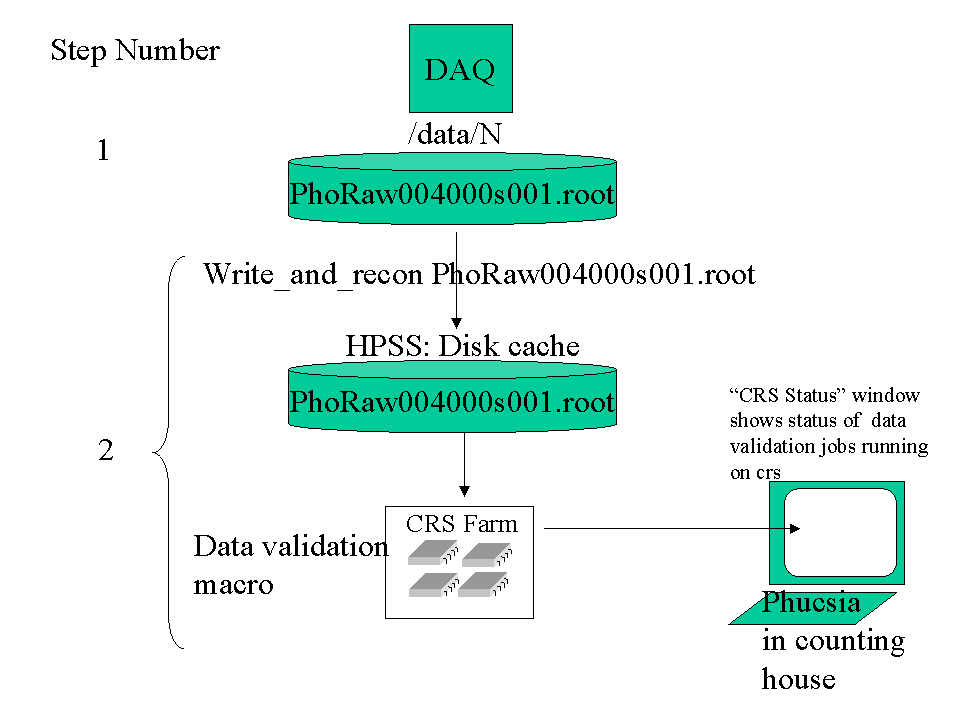
Description of the steps
- Data is taken and writen onto the DAQ disk (/data/0 ,or, 1 ....6)
- When the data run is finished, (and pedestals and gains have been run), the shift
personal send the data file to HPSS, using the command
write_and_recon [Filename]
when this happens data is "sunk" to HPSS (High Performance Storage System).
Once the file has be transfered, the script automatically fires up the data validation
macro which runs on the crs farm.
There is a monitor window ("CRS farm status for Phobos"), which shows the data
validation scripts that are running. Click here for more
information.
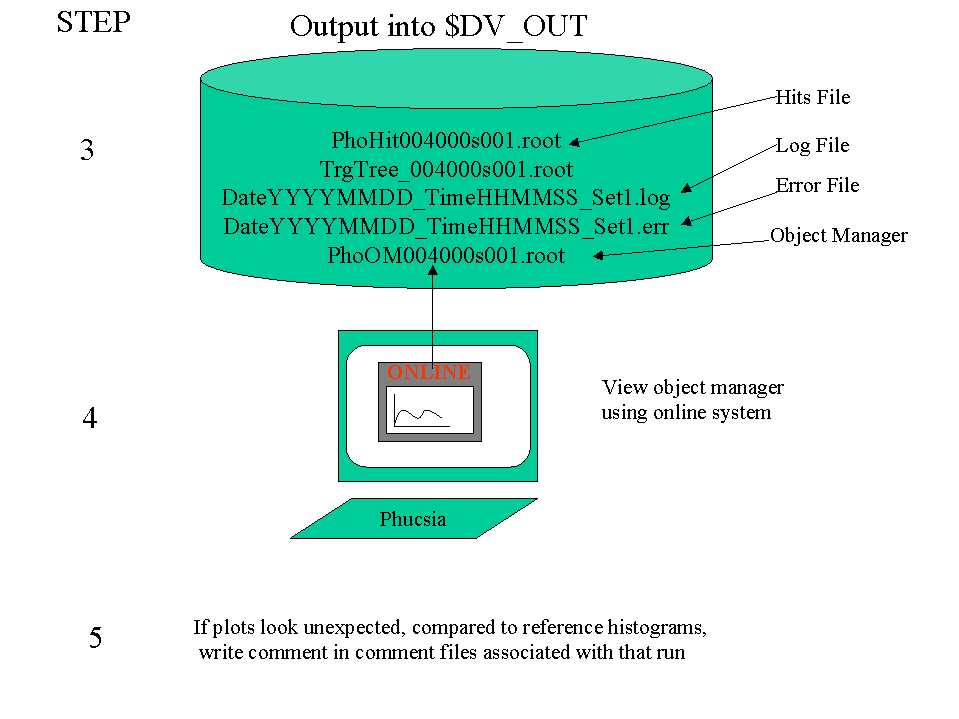
- When data validation is finished, the output is put into $DV_OUT, disk on rcf. (This
disk is viewable from any of the rcas400x nodes). The output includes , the hits file
(with CMN correction applied and without), the trigger tree, the object manager, a log
file (shows output from macro), and an error file (shows error that occured while
running). A copy of the hit files is put into HPSS in the following location:
/home/phobreco/pr00/recon
Summary
$DV_OUT
DateXXXXX_TimeZZZZ_Set1_[Run Number]s[Seq Number].err
DateXXXXX_TimeZZZZ_Set1_[Run Number]s[Seq Number].log
TrgTree[Run Number]s[Seq Number].root
PhoOM[Run Number]s[Seq Number].root
PhoHit[Run Number]s[Seq Number].root
PhoHit[Run Number]s[Seq Number]_PedsOnly.root
HPSS: /home/phobreco/pr00/recon
PhoHit[Run Number]s[Seq Number].root
PhoHit[Run Number]s[Seq Number]_PedsOnly.root
- When the job is finished, use the online, from phucsia, to view the object manager. This
file has the summary histograms. Examine each of these histograms (and compare them to
their reference histograms : This is not yet working :3 Aug00)
- What ever you find out about the run, put into the comments associated with that run.
Click here for how to do this.
- Ensure CRS monitor running on phucsia (look for window entitled "CRS Farm Status
for Phobos", for description click here) (Data validation uses the
lower right hand desktop window.)
If not follow instructions in Setting crs monitor up in counting house
- Data validation jobs currently running on the CRS farm are labelled
DV######s###_DateYYYYMMDD_TimeHHMMSS_Set1.jf
In the lower window of the "CRS Farm Status for Phobos" window you
can look for data validation jobs, and check that one has started if you/or DAQ have
just sent real data to HPSS and have started datavalidation for that run and sequence.
- Login into phucsia as shift
- Allow passwordless entry to phobreco on phucsia by, opening a window, and type
ssh-add [ENTER]
then when asked for password, enter the shifts account password on phucsia . Now you
should be able to log in to phobreco (below) without a password.
- Open a window, and open the DATA VALIDATION MONITOR (Green) window by typing:
<shift@phucsia:~> dvmonwin [ENTER]
- In the new window (green), login to rcf, by typing at the prompts:
<shift@phucsia:~> ssh phobreco@rsshgw.rcf.bnl.gov [ENTER]
- In the same window (green), now login to rcrsuser by typing at the prompts:
<rsshgw00:~ > ssh rcrsuser [ENTER]
- In the same window (green), start the monitoring program by typing at the prompt:
<phobreco@rcrsuser > tk_CRS_status.pl &[ENTER]
- This will pop-up a new window entitled "CRS Farm Status for Phobos", this
window allows monitoring of the jobs on CRS.
- Iconize the DATA VALIDATION MONITOR (Green) window.
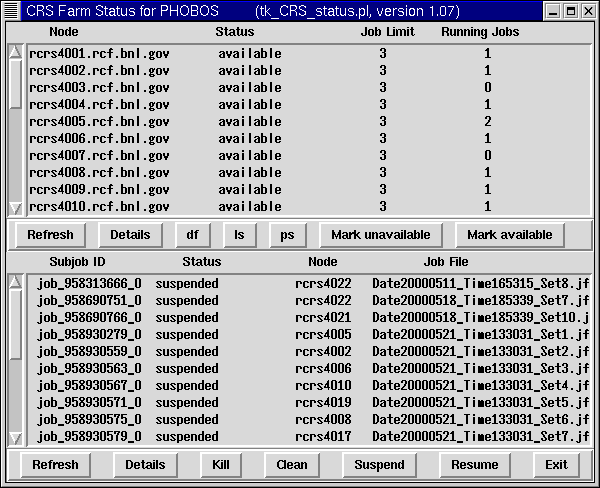
The window is divided into two sections: The top for monitoring the specific nodes (i.e
computer, with dual processor). The bottom for monitoring each job currently running or
qeued for the farm.
Note: This window does not automatically refresh itself, therefore to see the current
status hit the Refresh button.
Description of Top Window:
- Node: The name of the machines connected to the CRS farm
- Status: The current status of the node.
- Job Limit: The maximium number of jobs that can run of the node. As
each machine is a duel processor, it can run two jobs at once. The job limit is usually 3,
because for efficiency reasons, one job is staged sitting ready to go when weither of the
processors is freed up.
- Running Jobs: This shows the number of jobs "running" on the
node. If 3, then 2 are processing and 1 is waiting.
Description of Bottom Window
- Subjob ID: Every job submitted to crs, is given a job id, this is it.
- Status: This is the current stage that the job is at. General jobs go
through the following stages
constructing->staging -> queing -> transferring in ->running -> cleaning
mode
Constructing/Staging: Everything necessary to run the job, is
assembled
Queing: Waiting for a node to become avialable
Transferring in: All the files etc necessary to run the job,
are transferred onto the local disk/processor of the particular farm
computer.
Running: The job is currently running on that node
Cleaning node: The job is finished, and the files are
transfered to where they should go, and the node is cleaned so the next job
can run fresh.
- Node: The name of the node on which the job is running
- Job File: The name of the "job file" that was submitted to
the farm. The job file contains all the information that is used by the batch system to
construct the job on the crs node. For data validation it is a file that has the following
form
DV######s###_DateYYYYMMDD_TimeHHMMSS_Set1.jf
- Check data validation has been run on the run and sequence of interest (click here
to find out how)
- Start the online monitoring program in window entitled "DATA VALIDATION
CHECK" (blue window)(click here to find
out how)
- Examine the histograms (compare them to reference histograms, not yet implemented 3
Aug00)
- Record the quality of data, by putting comments in the database. Click here to see how to do this.
- To end the online monitoring program, goto the file menu and select "Quit"
option.
- Check the error files for any errors or warnings, and note in the runlogbook which ones
occur and how frequently.
For right now use the monitor program to see when no longer processed. Also can look at
files in "DATA VALIDATION CHECK" (blue window). If see a
"PhoOM[RunNumber]s[SeqNumber].root" file corresponding to your run and sequence
number, then datavalidation has finished.
- Login into phucsia as shift
- Allow passwordless entry to phobreco on phucsia by, opening a window, and type
ssh-add [ENTER]
then when asked for password, enter the shifts account password on phucsia . Now you
should be able to log in to phobreco (below) without a password.
- Open a window then open the DATA VALIDATION CHECK (Blue) window, by typing :
<shift@phucsia:~> dvcheckwin [ENTER]
- In the new window (blue), login to rcf, by typing at the prompts:
<shift@phucsia:~> ssh phobreco@rsshgw.rcf.bnl.gov [ENTER]
- In the same window (blue), now login to rcrsuser by typing at the prompts:
<rsshgw00:~ > ssh rcrsuser [ENTER]
- In the same window (blue), goto the data directory by typing at the prompt:
<phobreco@rcrsuser >cd $DV_OUT [ENTER]
- In the same window, type
<phobreco@rcrsuser >setphat
/phobos/u/phobreco/dataval/nominal/Phat_current [ENTER]
- Ensure you are in the correct window, by typing:
<phobreco@rcrsuser> who -m [ENTER]
if returns, rcrsuser.rcf.bnl.gov!phobreco the you are in correct window
- Ensure you are in the correct directory, by typing:
<phobreco@rcrsuser:data02/dv_out> cd $DV_OUT
[ENTER]
- To start the online program type, start phat by typing:
<phobreco@rcrsuser:data02/dv_out> phat
- At the root prompt, in phat, type:
root ~> TPhOnGui
gui(400,400) [ENTER]
- In the new window entitled "Phobos Online monitoring", goto the
"File" Menu, chose the "Browse DV" option
- In the new window entitled "open" choose the file entitled
PhoOM{Runnumber}s{SeqNumber}.root by double clicking on it.
(or if can't find it just enter filename from keyborad directly: Xforwarding
from RCF is having problems, so sometimes don't see all files in browser) (alos,
can in thhis window chose to display the files as a vertical listing)
- A window called "Online histogram Selector" with the modules and histograms to
view will appear.
- Goto the phobos portal.
- Click on Complete Run Logbook and select the run range of interest.
- Click on the "open book icon" , under heading "Comments" and enter
your comment for the appropriate run number
- Don't forget to reference the sequence number, with your comment.
- cd $DV_OUT
- File names have the run and sequence number in them i.e:
DateZZZZZ_TimeXXXX_Set1_[Run Number]s[Seq Number].err
DateZZZZZ_TimeXXXX_Set1_[Run Number]s[Seq Number].log
- cd $DV_OUT
- At prompt type,
./error.pl [Runnumber] [SequenceNumber] [ENTER]
(e.g: ./error.pl 3456 0 [ENTER])
- Displayed will be the error and warning messages, as well as the number of times
they appear in the error file.
In each output file object made there is a TPhRun object inserted. This is a copy of
the Raw data TPhRun onject + has the additional information about the macro that was run
to produce this file and the TAG version of phat that the macro was run under.This way the
complete information about what was run etc is avialable to the user.
Example:
phat [ENTER]
TFile f("PhoHit004434s000.root");
TPhRun *r=(TPhRun*)f.Get("RUN_4434_0");
r->Print();
(output includes, that shows macro name that was run + the TAG name)
...
macros/dataval/datavalidation.C TagName 0 ONLV_1_0_14
Nothing exists
Please send all comments and suggestions
regarding this page to Nigel
|