Last Updated on Thursday, January 13, 2005 at 12:34:36. by Author: Don Barton
(Expert)
MCR will control polarity and normal ramping of the magnet through their ramp sequencer. The sequencer will determine the "polarity" for a store by retrieving the choice set via the MCR Experiment Info Exchange window [BERT] that runs on Phuscia. The choice for a store must be set during the previous store (at store energy or during the ramp down).
During routine running MCR is responsible for responding to faults/trips of the magnet. If, however, the fault occurs during collisions and several minutes go by without apparent action, don't hesitate to call MCR to discuss the situation.
PHOBOS remains responsible for carrying out an emergency shutdown in case of fire, as long as PHOBOS is on shift. MCR must be notified if PHOBOS is not to be manned and the PHOBOS key inserted in PS [for MCR's convenience].
Ramp down before beam injection (start of Store) and before extraction (end of Store):
For more detailed instructions see specific items in Contents. In Magnet window on RHIC X-term:
If the PS has suddenly gone to Standby or Standby-Fault from On and/or the magnet current does not follow the reference, do the following:
The Phobos Magnet System consists of the magnet inside the experimental interaction region and the magnet power supply and cooling system in the utility building (1010A). The magnet monitoring happens in two different places: the magnet power supply is monitored through RHIC controls, the magnetic field and the magnet cooling water temperature is read out through a DVM in the electronics room (above cabinet #2). The magnet power supply is controlled through a special program on the RHIC X-term. The nominal magnet states are Standby & On when there are full time shifts and Off when there are no shifts.
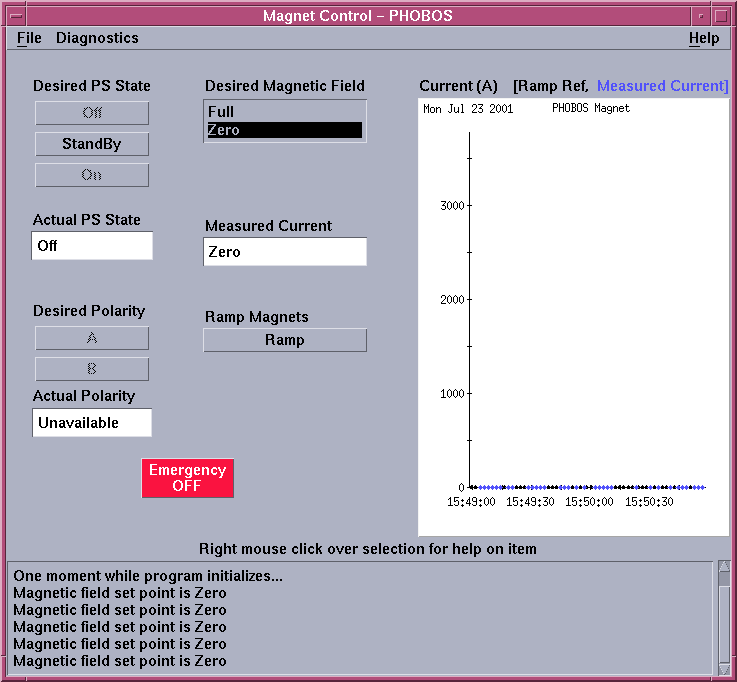
You control the setting of the magnet from a special PHOBOS magnet control program (emc). This page is accessible from the RHIC X-terminal ('acnxtek79'). During normal running the 'Magnet' program should be running iconified except when needed. Double-click icon to open window. Please do not start duplicates! If it is not running, you can start the magnet program by clicking somewhere in the root window ('the background' in the X-terminal), holding the mouse button and selecting 'Magnet Control (emc)' page in the 'Phobos Controls Console' drop-down menu. You will be asked for a password, which is listed with other PHOBOS passwords. You should see something similar to the following picture:
Command buttons are colored with inactive buttons grayed out. In the example shown, the magnet is OFF and the only allowed command is Standby. You may also Ramp the reference to Zero (useful after a fault). Fields with a white background contain displays of actual states of the power supply and and measured reference (DAC output) and current. The bottom message area contains historical comments on actions and results [a timestamp will be included soon].
The Emergency OFF button is only to be used in the case of a major emergency like fire in the tunnel or service building. It will request you to Confirm or Cancel this request. On confirmation, the magnet will be crashed to the Off state and the reference will be returned to Zero.
By right-clicking on any field title, you will activate a help window for that field that contains useful information.
If the interface Readback Mode is not set to A, you will see a pop-up asking if you want to change it to A. Reply Yes during normal operation. If CAS is working on magnet PS it may need to be B, so reply No. In that case displayed plot parameters will not be the expected readbacks, but other program features will operate correctly.
If the power supply is in 'Local' mode (CAS can put it there with a switch on the power supply), the interface buttons will be disabled and a message will appear at the bottom of the screen. Go to the PS and switch the switch on the left hand side from 'Local' to 'Remote' if it is.
You can Print the program window from the File menu. The Diagnostics menu has the following entries:
Steps 1-6 may be carried out with RHIC in any state.
If you have problems at any stage, please right-click for help or have a look at Troubleshooting.
If the magnet state is Off:
The magnet may not be turned On and ramped without MCR permission, which will be given at 'Store' and during suitable down-times.
The polarity can only be changed with the Magnet in Standby. If there is current in the magnet, ramp the magnet down first.
The Collider-Accelerator Support (CAS) watch (24/7 coverage during operation) can be reached by calling MCR at x4662 and asking for them to contact CAS for us.
1. Go to the RHIC X-term and find the 'Magnet Control' window. Click on 'Diagnostics', then 'Check Readback Mode'. You will see a message at the bottom of the window giving the Readback Mode. If it is 'A', no action is required. If it is 'B', a pop-up will also appear asking if you want to change it to 'A'. Reply 'Yes' during normal operation. If CAS is working on magnet PS it may need to be 'B', so reply 'No'.
2. Go to the 'MAGMON' computer. You should see the following arrow in the top of the 'MonitorMagnet.vi' window, just below the menu (the line with 'File', 'Edit' etc)

if you see this arrow:

then the VI (virtual instrument - the 'graphical script' of labview) is not running and you will need to click on it to activate it. If the VI is not running at all (you don't see any window with 'MobitorMagnet.vi'), you will need to start it by double clicking on the 'Magnet Monitoring' Icon on the 'Desktop' of the 'MAGMON' computer.
3. Look at the 'StatusStringM' field on the VI. If it says 'Off', then you can safely ignore any Error messages such as 'Fault' etc.
4. Look at the 'Measured I' and 'Measured V' fields, they should show fluctuating values. If the magnet is off, then the values fluctuate around 0, otherwise they fluctuate around the magnet set point. If these fields show 0 exactly, then the magnet monitor lost contact with the CDEV server (such as when the server was reset). You will need to exit labview and restart the magnet monitoring by clicking on the 'Magnet Monitoring' Icon on the 'Desktop' of the 'MAGMON' computer.
Please send all comments and suggestions regarding this page to Don Barton. |