Last Updated on Tuesday, August 19, 2014 at 15:47:30 by D. Hofman.
The Trigger system consists of four main detectors. The Paddles, the T0's, the Cerenkov and the ZDC's. Which detectors are actually used for triggering is determined by the Level 0 and Level 1 electronics setup as well as what trigger configuration is chosen for a particular run.
The Paddles and T0 detectors are most important of these four in terms of triggering, centrality determination and TOF operations. The Cerenkov detectors were actively used in RHIC Runs I (Au+Au at 130 GeV) and Run II (Au+Au at 200 GeV), but have not been used for extensive data taking since the 10-detector arrays of T0's came on-line for the d+Au data in Run III. The ZDC's are not used for primary triggering, and, for Au+Au collisions, serve mainly to clean up the data somewhat in the IsCollision definition via their timing information.
Since the centrality determination has been based on paddle signals, it is of critical importance that both the Paddle ADC and TDC data is present and fully operational. Since the time-Zero start for the high pT particle ID in the TOF is determined by the T0 detectors, it is also critical that both the TEQ - OR information and individual ADC and TDC spectra are working. For more information on the T0 detectors, see here: Link to T0 Documentation.
A. Checking Trigger Discriminators
Finding the Camac Controls VI- The Plastic Camac Controls VI is located on the Plastic HV and Camac Controls Computer. Make sure you are looking at the VI that is titled GPIB Camac Control for TOF and Trigger Discriminators.
Checking X and Q- The values of X and Q are printed on the upper right hand side of the VI front panel.
Action on X and Q Check- If X or Q are invalid, press the Read Out All Crates button. Recheck. If still invalid, stop the VI by pressing the Press to End Program button. Restart the VI by double clicking the Camac Controls icon on the desktop and pressing the start arrow in the left hand corner of the menu bar.
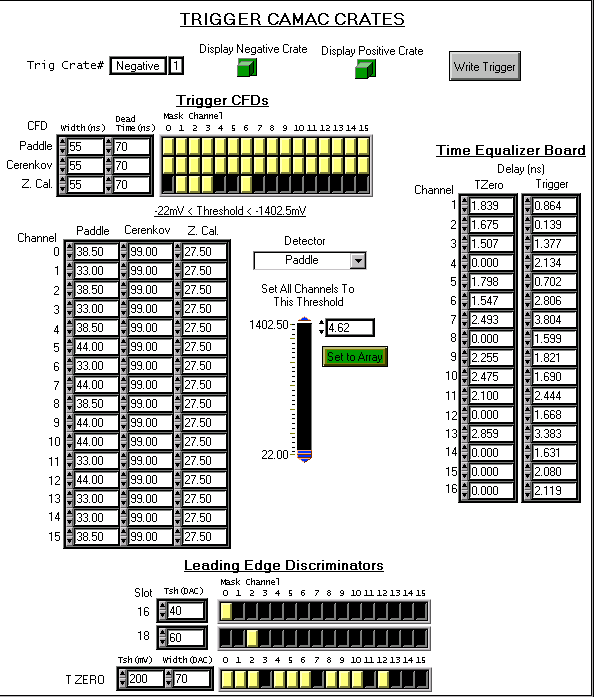
Checking the Mask and Thresholds- Compare the mask in the Camac Control VI (running on PLASMON - The PLASTIC HV & CAMAC CONTROLS computer) to the images below.
NEGATIVE SIDE
POSITIVE SIDE
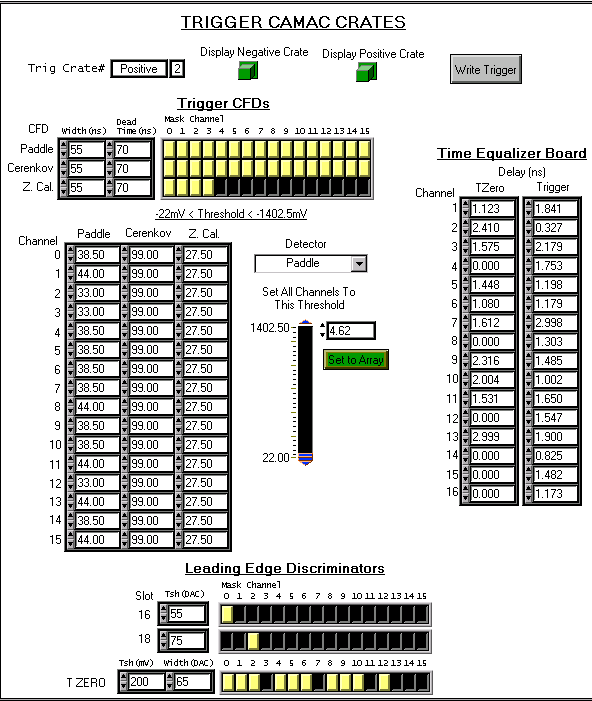
Check the Q/X, mask, and threshold values for both the positive and negative Camac crate displays. The two green buttons at the top of the trigger discriminator window let you change from the Negative side to the other (Positive).
If any of these values do not match the nominal state, contact Edmundo.
B. Checking Online Monitor.
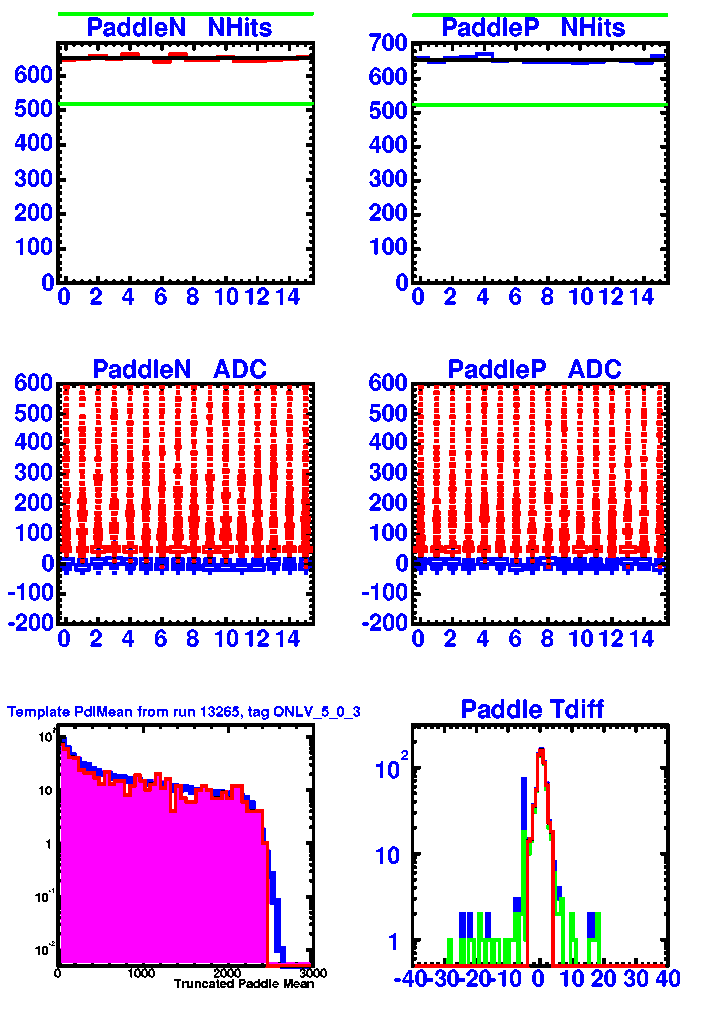
Starting in Run III, on PHONL1, there is an online monitor which provides immediate feedback on the TDC and ADC information of the trigger. By selecting PaddleN (or PaddleP) and CerenkovN (or CerenkovP) buttons, you will call up a page which displays the TDC and ADC information. Below are screen shots which illustrate what they should look like.
IMPORTANT NOTES: The Paddles and Cerenkov will only look like this for data taking. If you are only looking at TimeCalibrator data, you will likely see some missing TDC and ADC signals.
PADDLE's
What you should look for in both PADDLE's is
(a) Are the HITS (in TDC's) quite flat (+/- 20%) across all the detectors? (Are they
within the green limit lines?)
(b) Are the ADC signals and Pedestals there? (Red = ADC hits with valid TDC, Blue = ADC
pedestals with no TDC.)
(c) Does the Truncated Paddle Mean for data look similar to the template? (Does it reach
about 2500?)
(d) Does the Paddle Tdiff (time difference) have a peak close to zero.
CERENKOV's
(Not present for PR05)
What you should look for in CERENKOV's is
(a) Are the HITS (in TDC's) quite flat (+/- 20%) across all the detectors? (Are they
within the green limit lines?)
(b) Are the ADC signals and Pedestals there? (Red = ADC hits with valid TDC, Blue = ADC
pedestals with no TDC.)
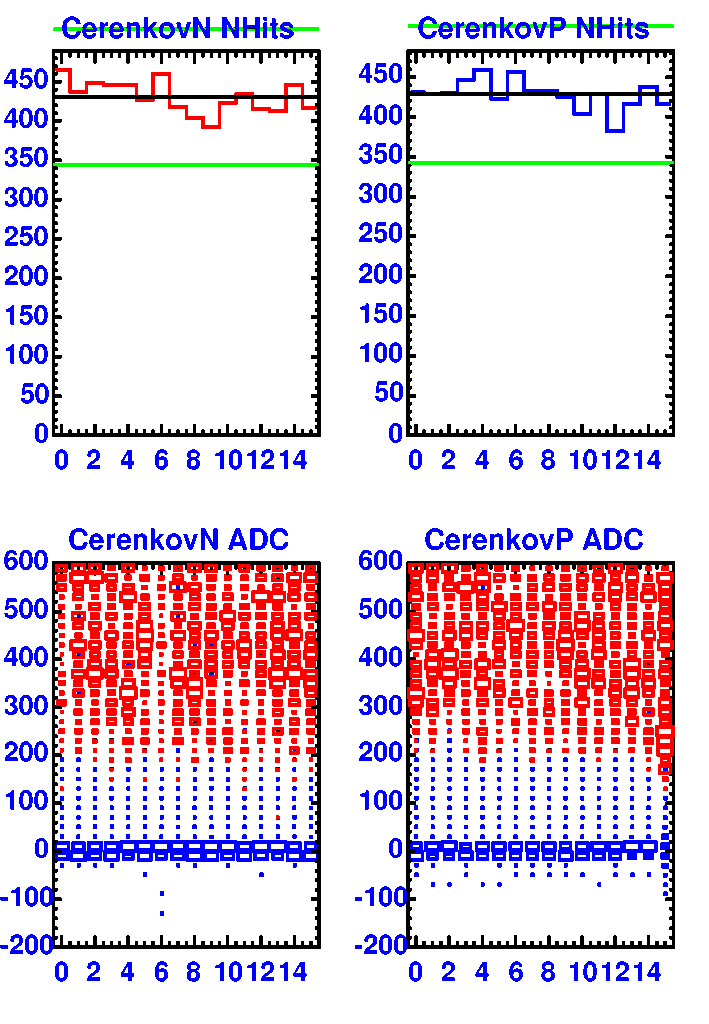
If there are any missing signals or other wierdness (if you are taking data!), then call the onsite trigger expert.
C. Checking Trigger Counter's High Voltage.
Finding the High Voltage Nominal State- Go to the Phobos Counting House Portal web page and open the 'Nominal Detector State' link. Scroll down the page until you get to the Plastic High Voltage section. At the bottom of the page is a picture of the current high voltage status.
The monitor of the HV control vi on PlasMon should look like the following for nominal running:
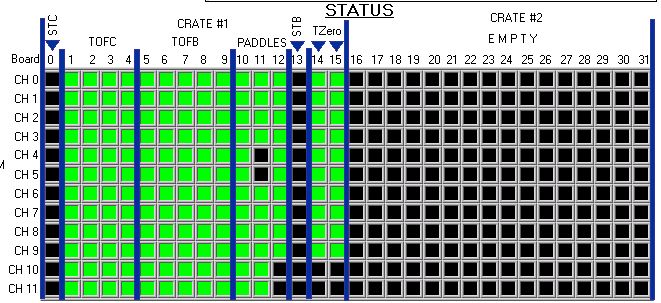
Finding the High Voltage Actual State- Go to the Plastic HV & Camac Controls Computer (labeled PLASMON). Make sure you are looking at the HV controls VI, entitled LeCroy 1458 High Voltage Mainframe Monitor and Control (select HV_CONTROL*(.vi) on the bottom bar).
Checking Agreement- Compare the Actual Status with the Nominal Status.
Actions on Agreement- If the Actual Status agrees with the Nominal Status do nothing. If the Actual Status disagrees with the Nominal Status contact Edmundo.
D. Checking ZDC HV
Go to the"RHIC Interface X-Term" and look for an open "HV" window. If you don's see one, look for the high voltage icon, "HV" in the gray "icons" window on the right. Double click on it to open the window. If you don't see either, click the right mouse button on a background area of the screen and choose the "ZCAL HV(pet)". option from the menu that appears.
Check that the nominal on/off state corresponds to the "status state", also the Vnom and Vmeas columns should have the same values within few volts (+-10 V). In there is a descrepancy call Edmundo, he may ask you to follow this procedure.
If you need to turn off the ZDCs, please call Edmundo for assistance, if not available, follow this procedure.
E. Doing the In Electronics Room Checks.
The Trigger Racks is directly in front of the electronics door. The purpose of this check is verify that the NIM racks and fans are working properly. The fans are labeled A, B, C, D. Look for the switch to be light red and/or for vibration to check if the fans are ON. If they are OFF, try the switch. If this does not work, note in the problem in the log book. To check the NIM bins, look for illuminated lights in some of the modules. Some of them should at least blip occasionally from cosmic events. If you feel that any of the trigger crates is off contact either Andrei or Edmundo.
Checking the Camac Crate Status- The Camac crates are located at the top trigger NIM bins on either side of the magnet. The Status window is on the top front panel of the Camac. Check the voltages using the dials / buttons at the bottom of the crate. If the voltages are not correct call Edmundo.
Checking the Nim Crate and Fan Status- The purpose of this check is verify that the Trigger NIM racks and fans are working properly. Check that the switch is illuminated and/or that the fans cause vibration. The fan cooling the bottom NIM bin may be either ON or OFF, however the fan cooling the middle NIM bin and the Camac crate on the top should be ON. If these fans are OFF try the switch. If this does not work, comment in the log book. To check the NIM bins power, look for the lights in the modules, some of them should be on. If you feel that any of the trigger crates is off contact either Andrei or Edmundo.
The scalers are located on top of the console next to the surveillance monitor. Starting in Run III, the scalars were modified to always read the count rate in Hz. (They had originally been reading only total counts.) Rates in single arm paddles during Au+Au running in Run IV should never exceed 1MHz (1,000,000 per second)! Hopefully they are not much above 200kHz. For a new measure of the background rates, one should now use the Paddle Background Monitor (black points), on the RHIC terminal. This should be ideally around 100, and if it gets above 500 there is likely a big background problem. These numbers are put here only for a rough benchmark. Please use whatever numbers have been agreed to for the current run and running period.
If you have any question or problem contact Edmundo.
Please send all comments and suggestions regarding this page to Edmundo. |